Showing posts with label networking. Show all posts

Friday, 2 October 2009

Monitoring top bandwidth usage of a network interface

Paul Warren's iftop tool provides quick-n-easy way of seeing the top bandwidth hogging connections on a specified network interface. Just like other top like tools, it's a text console based tool.

To install, use:

sudo apt-get install iftop

To monitor traffic on my wifi interface wlan1, I used:

sudo iftop -i wlan1

..note that specifying more than one interface causes it to segfault :-(

It has a few interactive commands, press 'h' to get help, and 'h' again to toggle back out of the help screen. For example, the 't' key allows one to cycle through send/receive display modes, and the 'p' key toggles on/off the port number on the connection display. Naturally, the 'q' key quits the application.


The bottom of the screen displays a summary of the TX/RX statistics including cumulative totals and peak transfer rates. All in all quite a helpful little tool.

Thursday, 10 September 2009

SA pigeon 'faster than broadband'

The BBC has a report on a 11 month old carrier pigeon that carried 4GB of data on a memory stick to demonstrate that it could move data quicker than the fastest available ADSL provider. While this makes a fun headline, it's really kind of bogus on many levels. How about repeating the experiment by transferring data from the UK to Australia, or sending just 1K Email message?

Any right minded computer science student will recall the Andrew Tanenbaum quote "Never underestimate the bandwidth of a station wagon full of tapes" in his definitive networking tome "Computer Networks". It's not just bandwidth we are looking at - it's connectivity, latency, reliability and distance that matters. So while it's kind of fun to make pigeon post comparisons, it is totally bogus for a like for like comparison.

Mind you this is not new, RFC1149 (Standard for transmission of IP datagrams on avia) has been around since 1990 and has a follow up RFC2549 (including fun ASCII art avian images) in 1999.

So this news story is not entirely based on an new technology :-) In fact, a ping has been successfully sent via pigeon thanks to the help of the Veste Brevdueforening carrier pigeon club, so we know it's a viable technical solution, just not the kind of one I would like to be using when using the Web or downloading my Email :-)

Wednesday, 9 September 2009

Monitor network traffic using iptraf

Today I found a nifty little tool to monitor and measure IP network activity called IPTraf - an ncurses text based interactive tool written by Gerard Paul Java.

To install on a Ubuntu system, use:

sudo apt-get install iptraf

and to run, use:

sudo iptraf

It has several modes of monitoring, from IP traffic view, interface statistics, detailed interface statistics, statistical breakdowns (by packet size and by TCP/UDP port) to name but a few:


The IP traffic view displays TCP connections and a scrolling IGMP/UDP activity window; it's kind of useful but with a busy machine it can be rather too hectic with so much information being updated.


The "Detailed interface statistics" option dumps running totals on IP, TCP, UDP, ICMP, other IP and non-IP traffic, giving total rates and input/output rates on a selected network interface:


The "Statistical breakdowns..." option allows one to look at interface activity in terms of break down by packet size or by TCP/UDP port. Below is the TCP/UDP port breakdown:


There are a bunch of other options to set up filtering an a large set of tweakable configuration options one can play with. It's one of those tools that's handy to quickly see what's going on one's network interfaces and I recommend installing it and playing around with it to see it's full potential.

Saturday, 1 August 2009

EtherApe - Network Analysis Tool

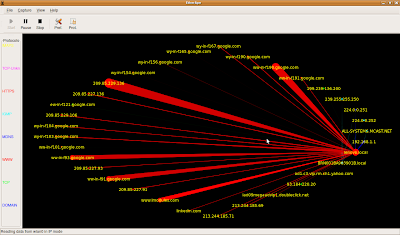
EtherApe is a helpful graphical real-time network connectivity monitoring tool that allows one to quickly see the open connections on the local network.

It supports a variety of devices, covering Ethernet, FDDI, Token Ring, ISDN, PPP and SLIP. Hosts and links between hosts change in size with traffic, and protocols are coloured according to the type of protocol.

To install on an Ubuntu system use:

apt-get install etherape

And run it as a root user using Applications->Internet->EtherApe (as root)

To capture Wifi network activity, select Capture->Interfaces->wlan0

Below is an example of EtherApe running on my laptop:

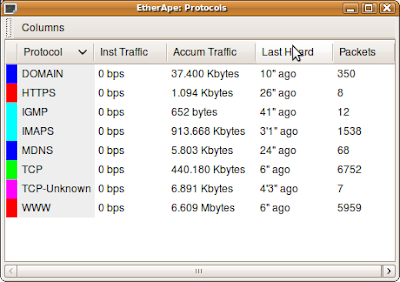
There is a per-protocol network summary viewable from View->Protocols (tick to enable) or by clicking on the "Prot." button - it produces output as follows:

There a quite a few tweakables, e.g. changing colours, selecting in/out bound traffic and timing and scaling of nodes and links. Also there are some hot keys controls such as pressing Alt-I to view just IP traffic and Alt-T to view just TCP traffic.

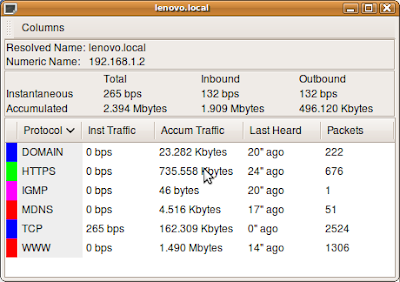
One can double-click on a node on the graph and EtherApe will drill down and display a per-node network activity summary, for example:

All-in-all EtherApe is useful little tool that can help one to check quickly on what kind of traffic is on one's network and to see where all the packets are going. Not bad at all!

Friday, 31 July 2009

Zero Configuration Networking

Sometimes good things work under the bonnet and you just don't even know about it. The problem is that when good things have been implemented and you don't know about it you can really miss out on all the goodness!

For example avahi - this provides service discovery on your local network. With avahi one can add your computer into a local network and instantly be able to find other machines on the local network without the pain of configuring a server to run services such as DNS. For zero effort you get a top level domain (TLD) of .local - so if your hostname is called mypc, it's resolvable as mypc.local

Some of the details to how this was implemented in Ubuntu is detailed in the ZeroConfigNetworking wiki page if you want to see some of the nuts and bolts behind this.

If you want to discover the machines on your network, use:
avahi-browse -a -t

and you get output something like the following:
+ wlan0 IPv4 mynetbook [00:24:1b:7a:22:c2] Workstation local
+ wlan0 IPv4 delllaptop [00:1f:1c:cd:82:41] Workstation local


Use can use avahi-resolve-host-name to get the IP address of a machine on the .local TLD using:

avahi-resolve-host-name -n hostname

Saturday, 25 July 2009

Speedometer - measuring network interface load

On my quest to find the more unusual or interesting network monitoring tools I stumbled upon speedometer. Speedometer is a useful text based network throughput meter - it provides a scrolling load graph and annotates throughput peaks:


To install, use:

sudo apt-get install speedometer

and run by specifying the rx and/or tx network interface:

speedometer -rx wlan0 -tx wlan0

One can also use it to monitor the rate of a running download. For example, suppose I'm downloading a Ubuntu ISO using firefox, one can monitor the download speed using:

speedometer -f Desktop/ubuntu-9.04-desktop-i386.iso.part

The ability to measure the rate that a file is being written to means one can use speedometer to measure the write speed on a filesystem using:

dd if=/dev/zero of=test.dat bs=1M count=4096 &
speedometer -f test.dat

Specifying multiple network interfaces will draw the network activity in graphs stacked one on top of another. However, one can stack the graphs in columns by using the -c flag:

speedometer -rx wlan0 -c -rx wlan0


If you don't like the fancy graphs, a simple text mode output can be selected using the -t flag, as illustrated below:

speedometer -p -tx wlan0
[.]34.1 KB/s [c]34.1 KB/s [A]34.1 KB/s (....::::++++| )
[.]44.7 KB/s [c]37.6 KB/s [A]41.2 KB/s (....::::++++| )
[.]33.8 KB/s [c]38.3 KB/s [A]38.3 KB/s (....::::++++| )
[.]47.2 KB/s [c]39.3 KB/s [A]40.8 KB/s (....::::++++| )
[.]31.1 KB/s [c]39.2 KB/s [A]38.6 KB/s (....::::++++| )
[.]35.0 KB/s [c]38.0 KB/s [A]38.0 KB/s (....::::++++| )
[.]46.7 KB/s [c]38.2 KB/s [A]39.3 KB/s (....::::++++| )
[.]36.9 KB/s [c]38.9 KB/s [A]39.0 KB/s (....::::++++| )

One can also specify the update interval in seconds using the -i flag, e.g. for half second updates use:

speedometer -rx wlan0 -i 0.5

All in all, not bad for a text based console utility.

Postscript. I while back I wrote a network throughput measuring script which can be downloaded from my scripts git repository. It's not as pretty as speedometer, but it's yet tool that you may find useful. To clone this repository, read the instructions here.