Friday, 17 February 2012

Introducing the Firmware Test Suite Live (fwts-live)

Firmware Test Suite Live (fwts-live) is a USB live image that will automatically boot and run the Firmware Test Suite (fwts) - it will run on legacy BIOS and also UEFI firmware (x86_64) bit systems.

fwts-live will run a range of fwts tests and store the results on the USB stick - these can be reviewed while running fwts-live or at a later time on another computer if required.

To install fwts-live on to a USB first download either a 32 or 64 bit image from http://odm.ubuntu.com/fwts-live/ and then uncompress the image using:

 bunzip2 fwts-live-*.img.bz2  

Next insert a USB stick into your machine and unmount it. Now one has to copy the fwts-live image to the USB stick - one can find the USB device using:

 dmesg | tail -10 | grep Attached  
 [ 2525.654620] sd 6:0:0:0: [sdb] Attached SCSI removable disk  

..so the above example it is /dev/sdb, and copy using:

 sudo dd if=fwts-live-oneiric-*.img of=/dev/sdb  
 sync  

..and then remove the USB stick.

To run, insert the USB stick into the machine you want to test and then boot the machine.  This will start up fwts-live and then you will be shown a set of options - to either run all the fwts batch tests, to select individual tests to run, or abort testing and shutdown.


If you chose to run all the fwts batch tests then fwts will automatically run through a series of tests which will take a few minutes to complete:
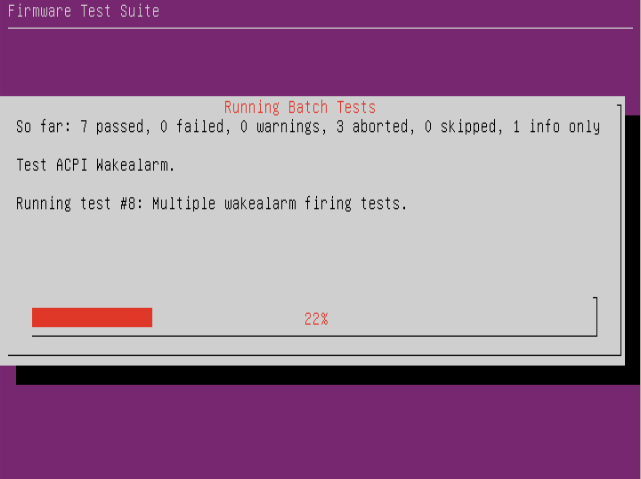

and when complete one can chose to view the results log:


if "Yes" is selected then one can view the results. The cursor up/down and page up/down keys can be used to navigate the results log file.  When you have completed viewing the results log, fwts-live will inform you where the results have been saved on the USB stick (so that one can review them later by plugging the USB stick into a different machine).


A full user guide to fwts-live is available at: https://wiki.ubuntu.com/HardwareEnablementTeam/Documentation/FirmwareTestSuiteLive

To help interpret any errors or warnings found by fwts we recommend visiting  fwts reference guide - this is has comprehensive description of each test and detailed explanations of warnings and error messages.

Below is a demo of fwts-live running inside QEMU:


Kudos to Chris Van Hoof for producing fwts-live

Wednesday, 1 February 2012

3G using a Huawei E1552/E1800 (HSPA modem) on Ubuntu

So my internet service provider is rolling out a programme of speed upgrades and over the past few weeks I've suffered from various connectivity issues most probably because of infrastructure upgrades.   I lost connectivity today at 6am and was told to expect to be connected by 9pm, so I popped down town and acquired a 3G USB dongle and a suitable data plan/ contract for my needs.

Typically these USB dongles are designed to appear as USB media devices (e.g. pseudo CD-ROM) and one has to mode switch it to a USB modem.   Unfortunately I had a Huawei E1552/E1800 which required some USB mode switching magic, but to find this I first required internet connectivity.   Fortunately I had a sacrificial laptop which I installed an old version of Windows XP which allowed me to then connect to the internet using the 3G USB dongle and I was able to then track down the appropriate runes.  OK, I feel bad about installing Windows XP, but I was being pragmatic - I needed connectivity!

The procedure to get this device working on Ubuntu wasn't too bad.  First I identified the USB dongle using lsusb to get the vendor and product IDs (12d1:1446):

Bus 002 Device 013: ID 12d1:1446 Huawei Technologies Co., Ltd. E1552/E1800 (HSPA modem)

Then I added the following runes to /etc/usb_modeswitch.conf -

 DefaultVendor= 0x12d1  
 DefaultProduct=0x1446  
 TargetVendor= 0x12d1  
 TargetProductList="1001,1406,140b,140c,141b,14ac"  
 CheckSuccess=20  
 MessageContent="55534243123456780000000000000011060000000000000000000000000000"  

..this appears in many forums on the internet, kudos to whoever figured this out.

Then I ran "sudo usb_modeswitch -c /etc/usb_modeswitch.conf" and this switched the dongle into:

Bus 002 Device 012: ID 12d1:14ac Huawei Technologies Co., Ltd.

..and I was then able to simply connect using network manager.   Result!

** UPDATE **

Mathieu Trudel-Lapierre fixed this (9th Feb 2012) and now Ubuntu Precise works perfectly with the  Huawei E1552/E1800.  Thanks Mathieu!

Tuesday, 24 January 2012

open() using O_WRONLY | O_RDWR

One of the lesser known Linux features is that one can open a file with the flags O_WRONLY | O_RDWR.   One requires read and write permission to perform the open(), however, the flags indicate that no reading or writing is to be done on the file descriptor.   It is useful for operations such as ioctl() where we also want to ensure we don't actually do any reading or writing to a device.  A bunch of utilities such as LILO seem to use this obscure feature. 

LILO defines these flags as O_NOACCESS as follows:

 #ifdef O_ACCMODE  
 # define O_NOACCESS O_ACCMODE  
 #else  
 /* open a file for "no access" */  
 # define O_NOACCESS 3  
 #endif  

..as in this example, you may find these flags more widely known as O_NOACCESS even though they are not defined in the standard fcntl.h headers.

Below is a very simple example of the use of O_WRONLY | O_RDWR:

 #include <stdio.h>  
 #include <stdlib.h>  
 #include <unistd.h>  
 #include <sys/ioctl.h>  
 #include <fcntl.h>  
 int main(int argc, char **argv)  
 {  
      int fd;  
      struct winsize ws;  
      if ((fd = open("/dev/tty", O_WRONLY | O_RDWR)) < 0) {  
           perror("open /dev/tty failed");  
           exit(EXIT_FAILURE);  
      }  
      if (ioctl(fd, TIOCGWINSZ, &ws) == 0)  
           printf("%d x %d\n", ws.ws_row, ws.ws_col);  
      close(fd);  
      exit(EXIT_SUCCESS);  
 }  

It is a little arcane and not portable but also an interesting feature to know about.

Friday, 20 January 2012

C ternary operator hack

Here is a simple bit of C that sets either x or y to value v depending on the value of c..

if (c)   
    x = v;  
else  
    y = v;  

..but why not "improve" this by using the C ternary operator ? : as follows:

 *(c ? &x : &y) = v;  

Now, how does this shape up when compiled on an x86 with gcc -O2 ?  Well, the first example compiles down to a test and a branch where as the second example uses a conditional move instruction (cmove) and avoids the test and branch and is faster code.  Result!

OK, so this isn't rocket science, but does show that a little bit of abuse of the ternary operator can save me a few cycles if the compiler is clued up to use cmove.